
Set Up Email Notifications for Tickets
Here is our approach for setting up email notifications for tickets in Zoho Desk in a simple way.
Even a non-technical person can easily set it up in just a few steps.

Approach
We can set up ticket email notifications using a workflow rule and an email alert in Zoho Desk.
1. Creating a Workflow Rule
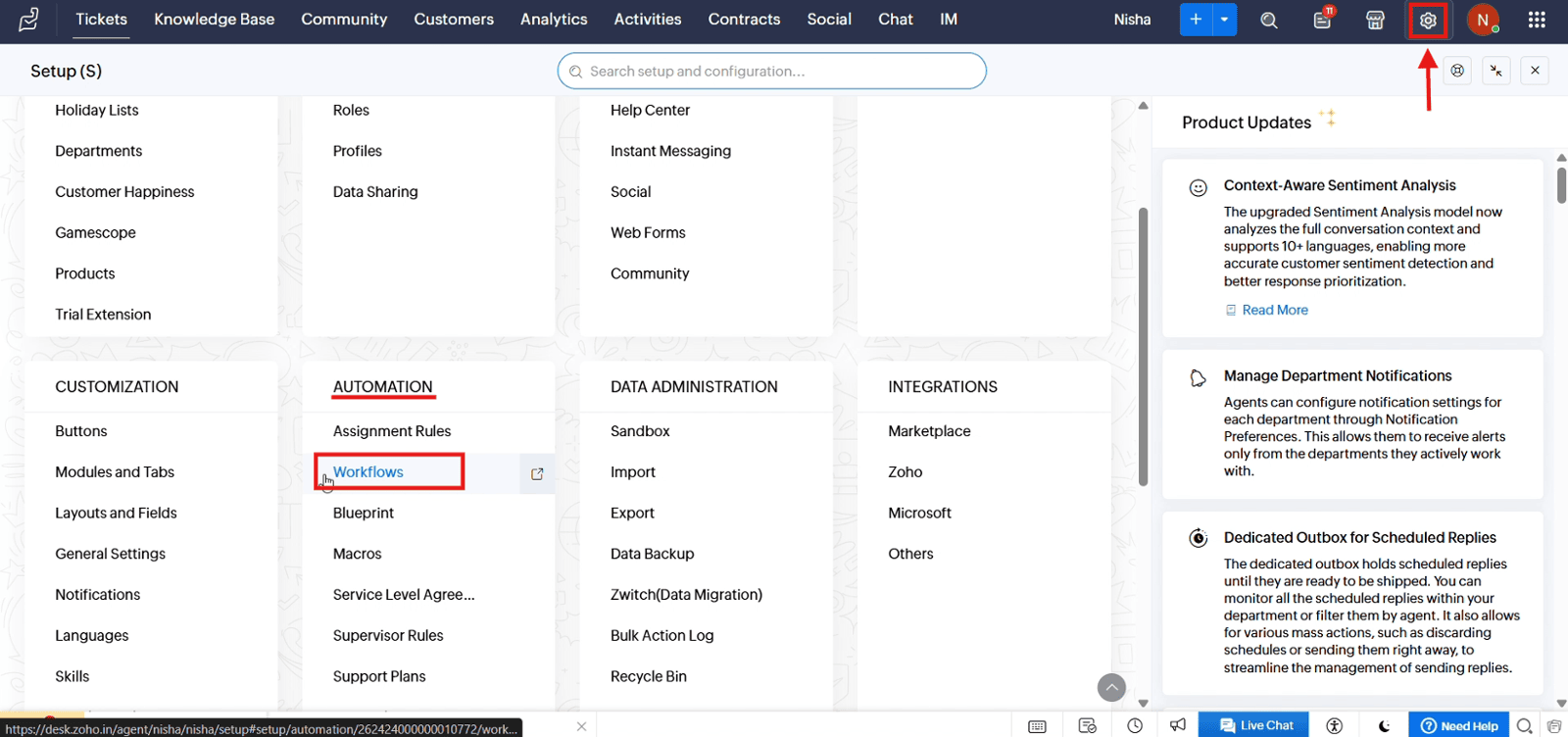
1.1 Open "Setup", navigate to "Automation" and select "Workflows"
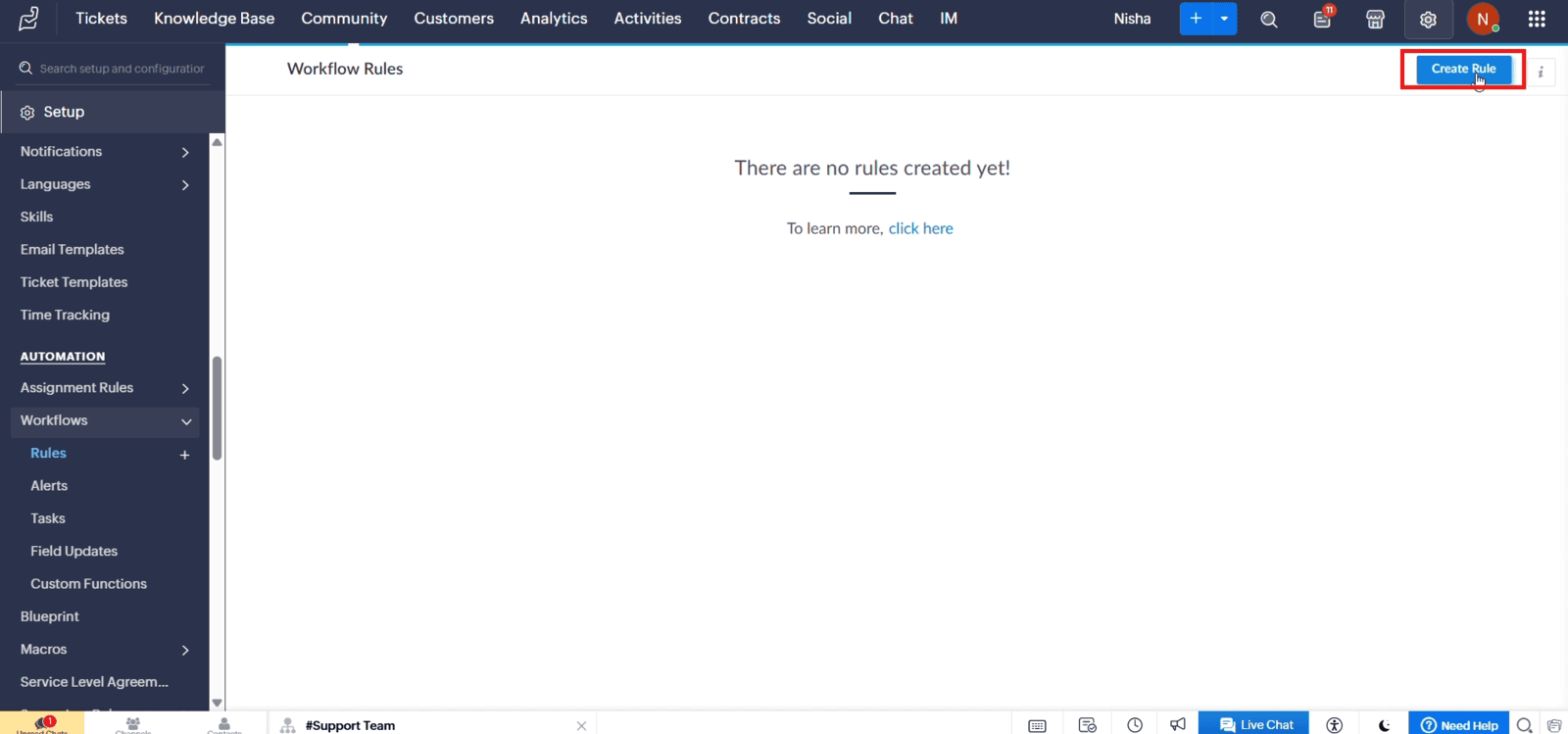
1.2 Click "Create Rule"
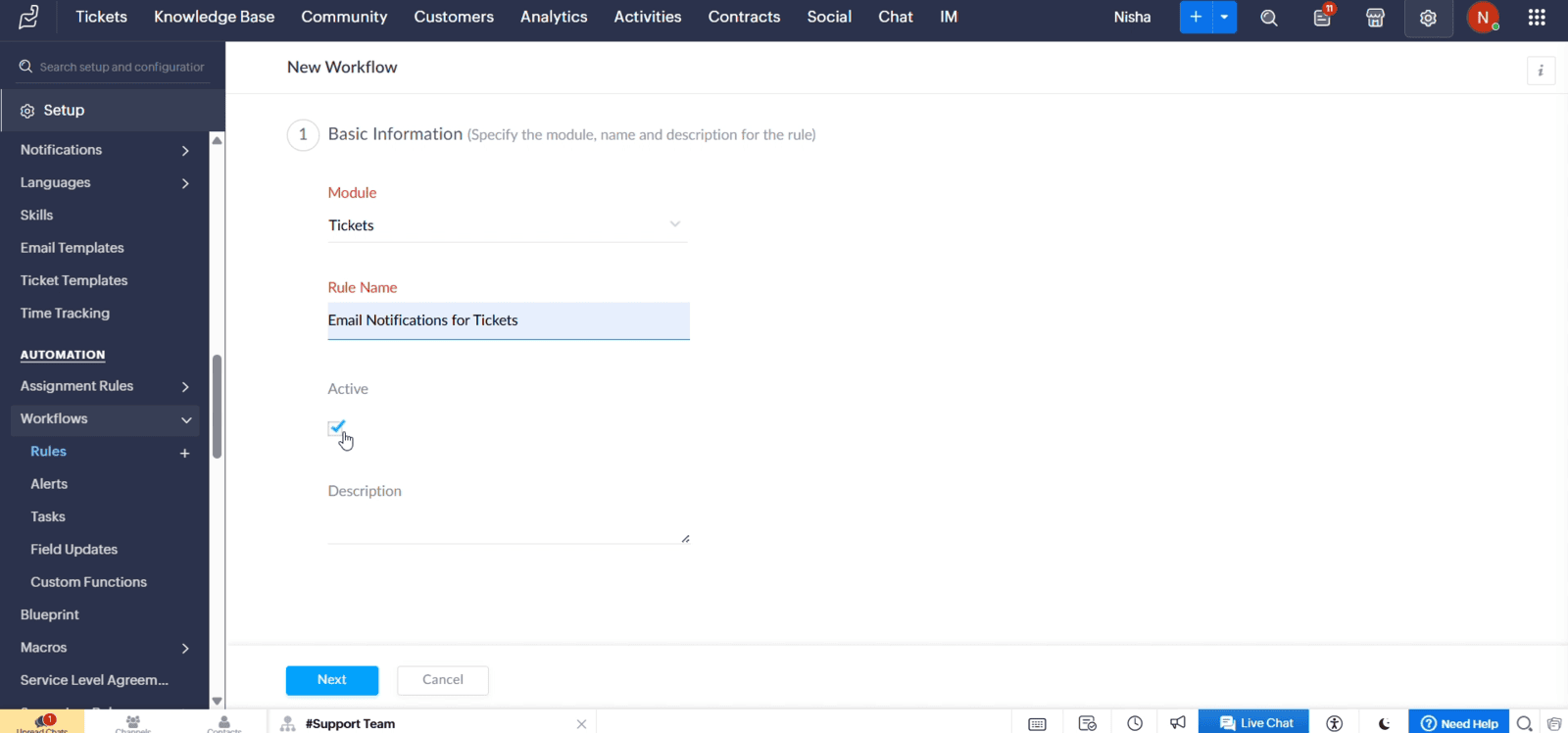
1.3 Select "Tickets" as the module, enter the rule name, keep the rule active, and click "Next"
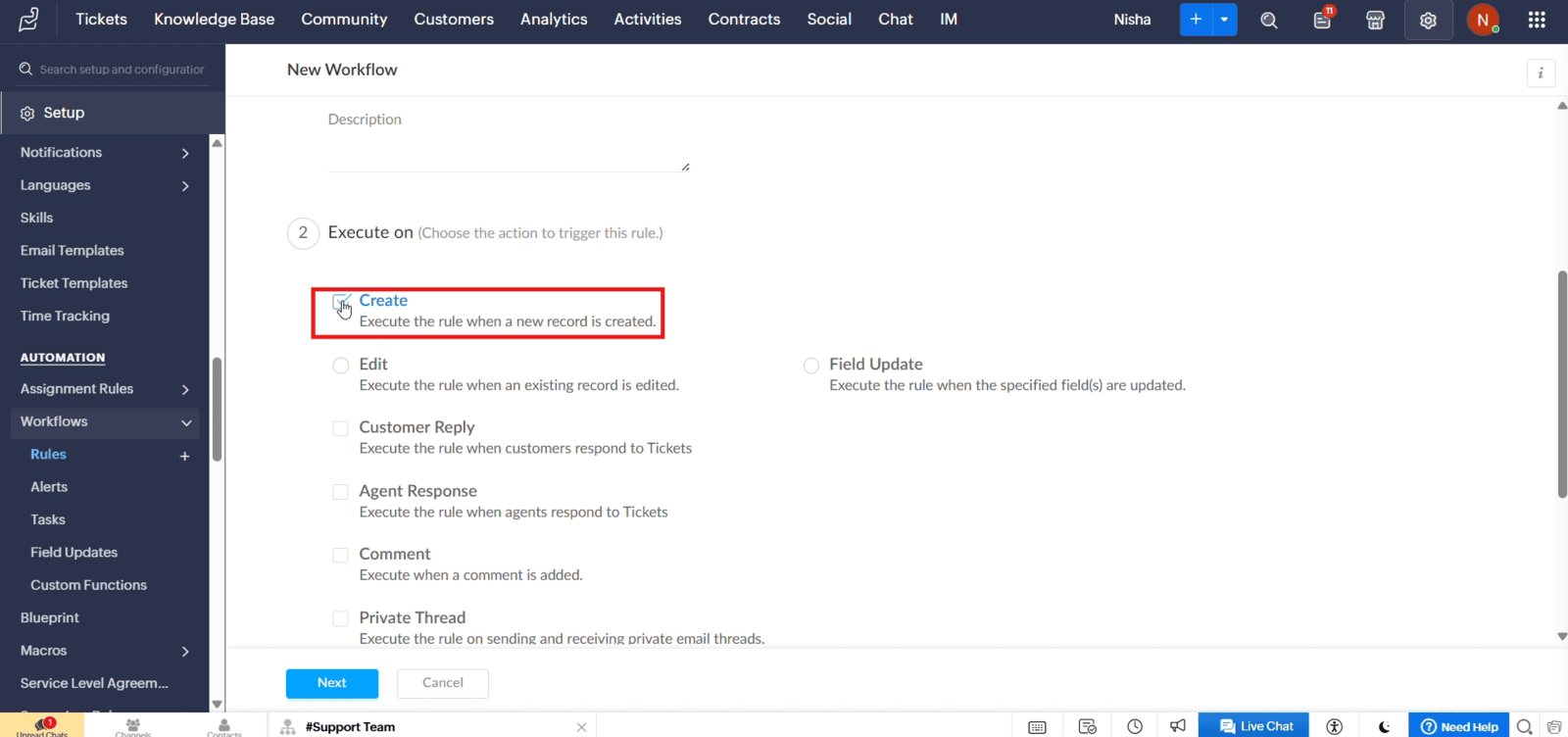
1.4 Select "Create" as the execution trigger
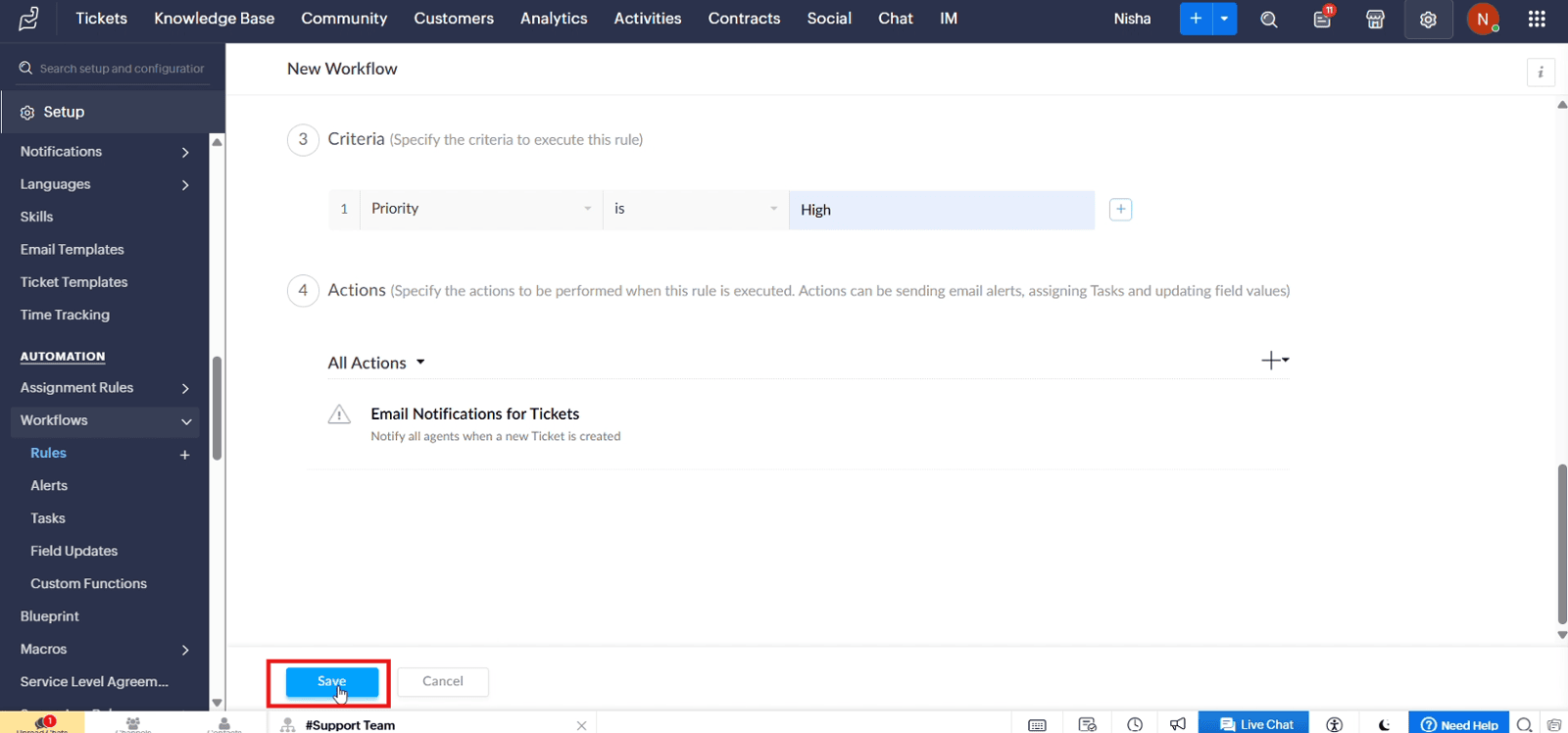
1.5 Set the criteria for the notification and click "Next"
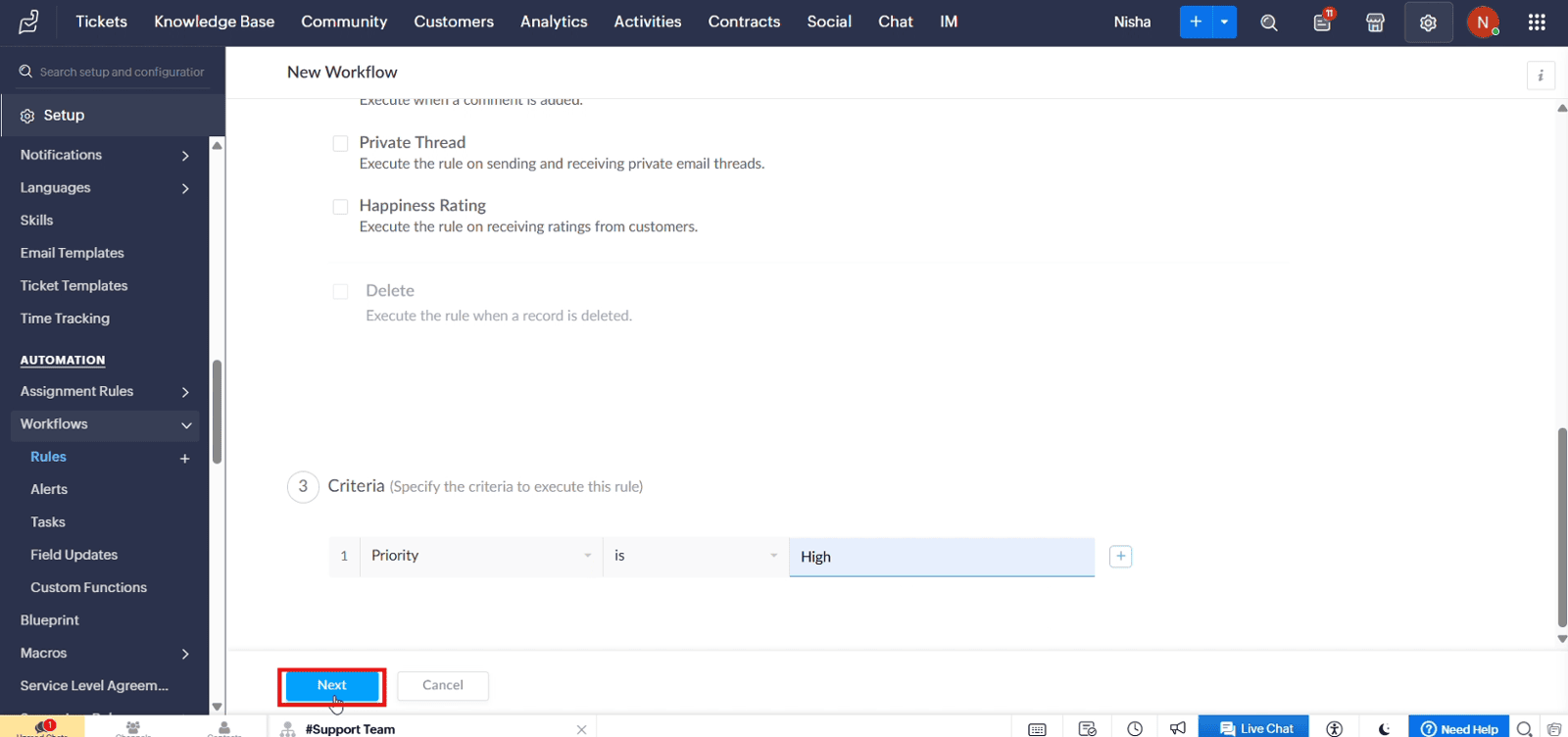
2. Configuring Email Notifications
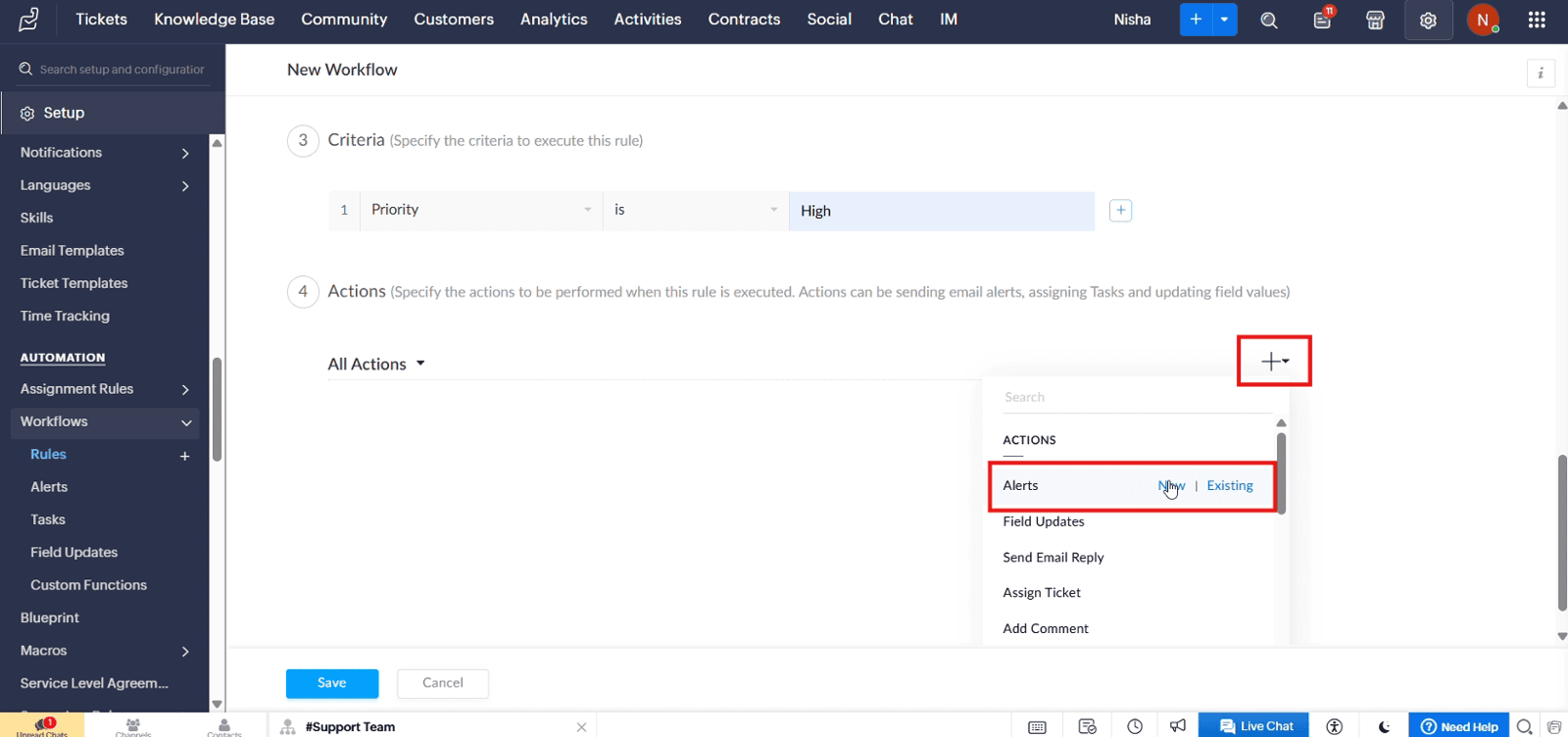
2.1 Click the "+" icon, and under "Actions", select "New" beside "Alerts"
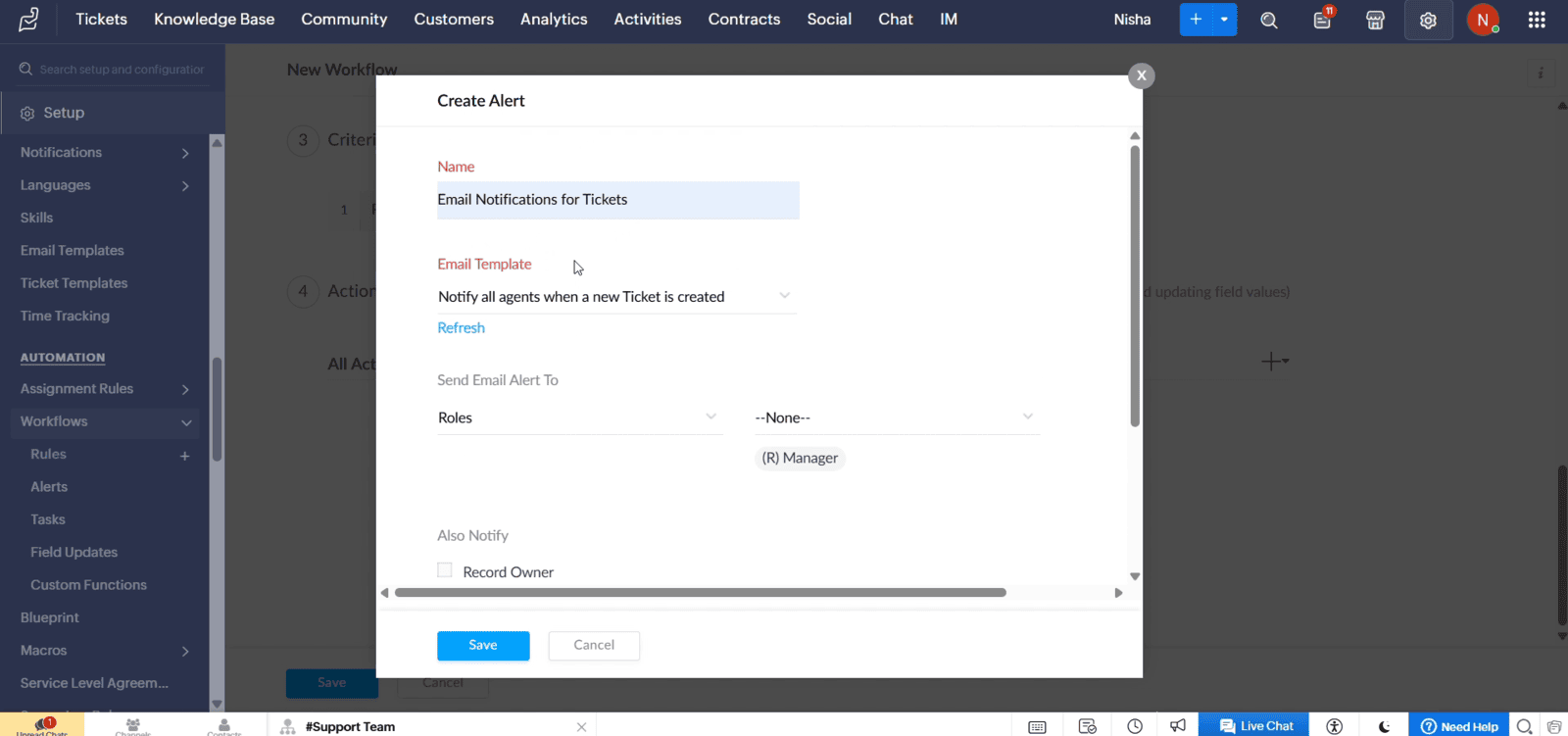
2.2 Enter the alert name, select an email template, and choose the recipients
2.3 Click "Save"
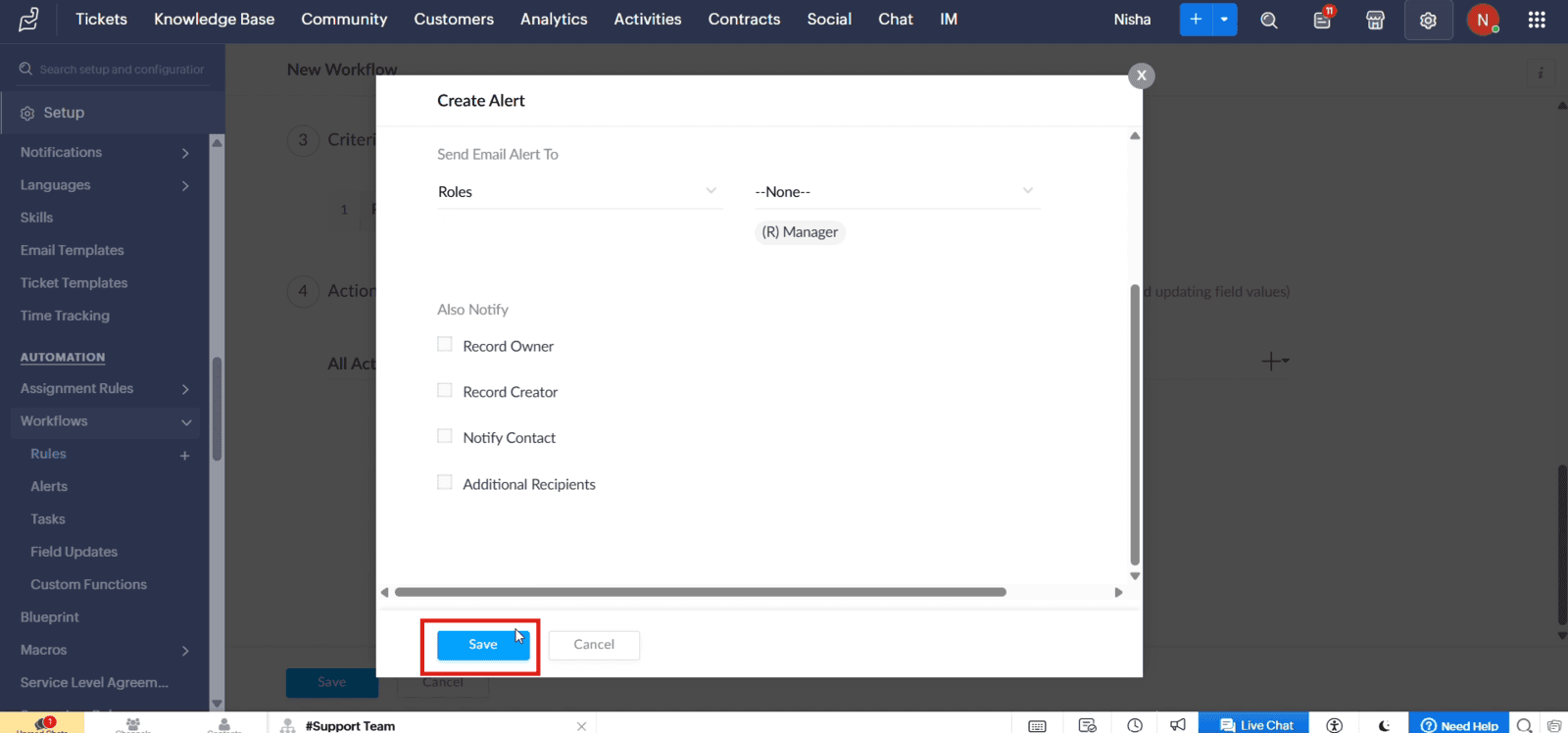
2.4 Click "Save" again to save the workflow rule
Video: Set Up Email Notifications for Tickets in Zoho Desk
Here is the video explanation of the above steps.


